
Categories
Categories are the skeleton of your menu. Open Categories from the left menu.
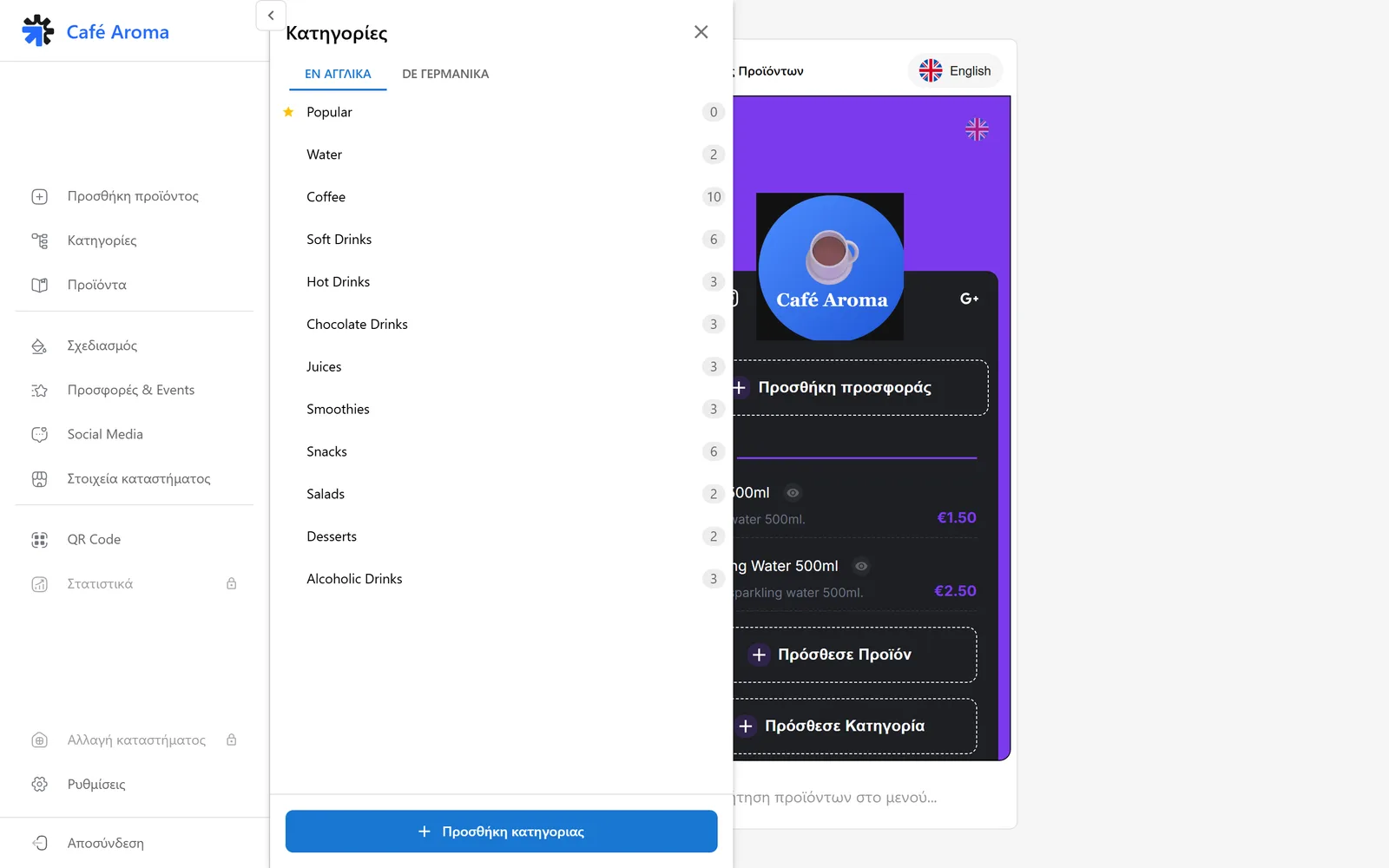
- You see every category with the number of products it contains.
- The add category button creates a new one.
- The language tabs let you check each category name in every language.
- The Popular category with the star shows the featured products you pick.
The category order here is the order your customers see on the QR menu.
The product list
In the Products section you see every product of your store in one list.
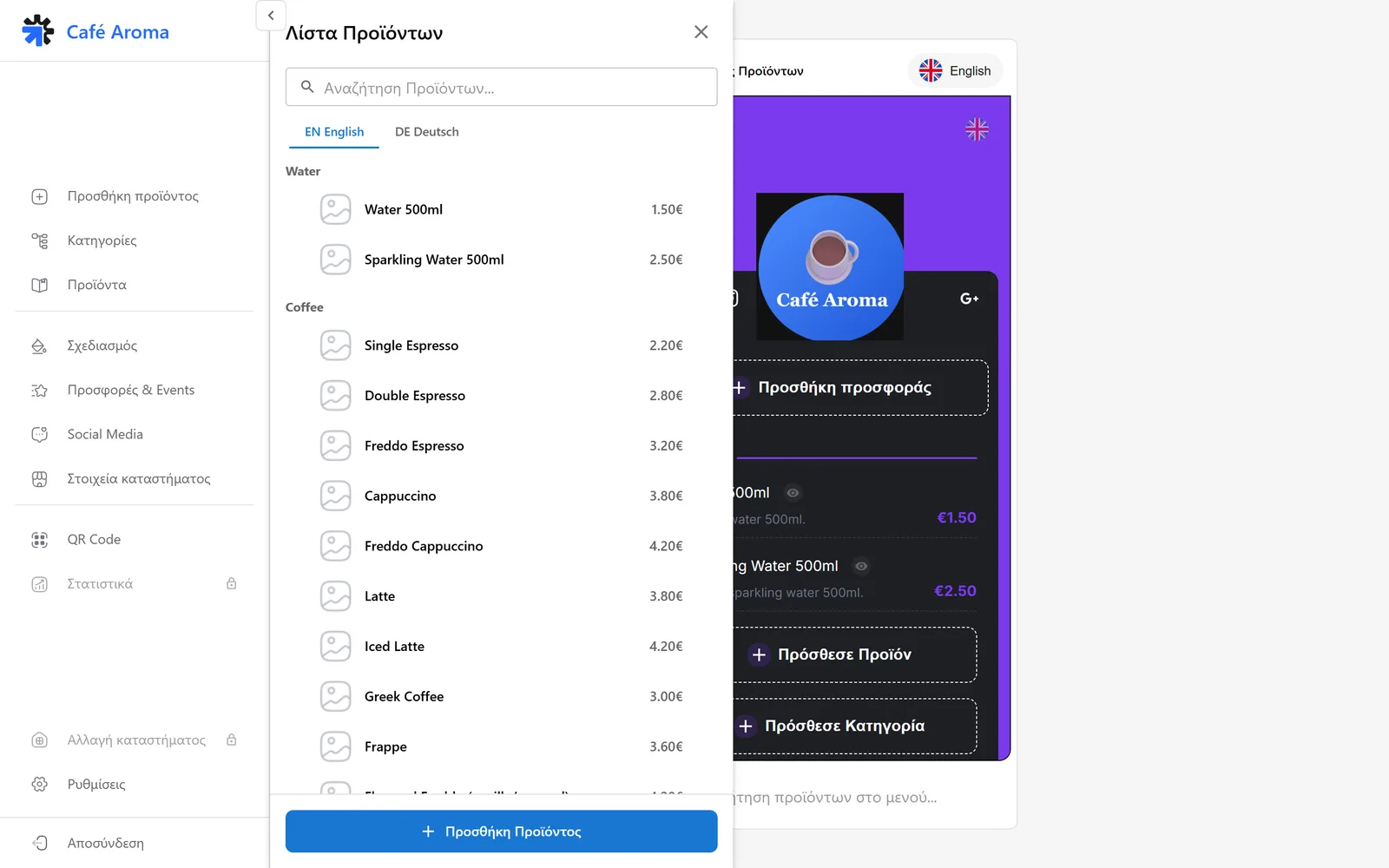
- Edit a product with one click.
- Temporarily hide anything unavailable.
- Delete what you no longer need.
A new product
The add product option in the left menu, or the add product button in the preview, opens the new product form.
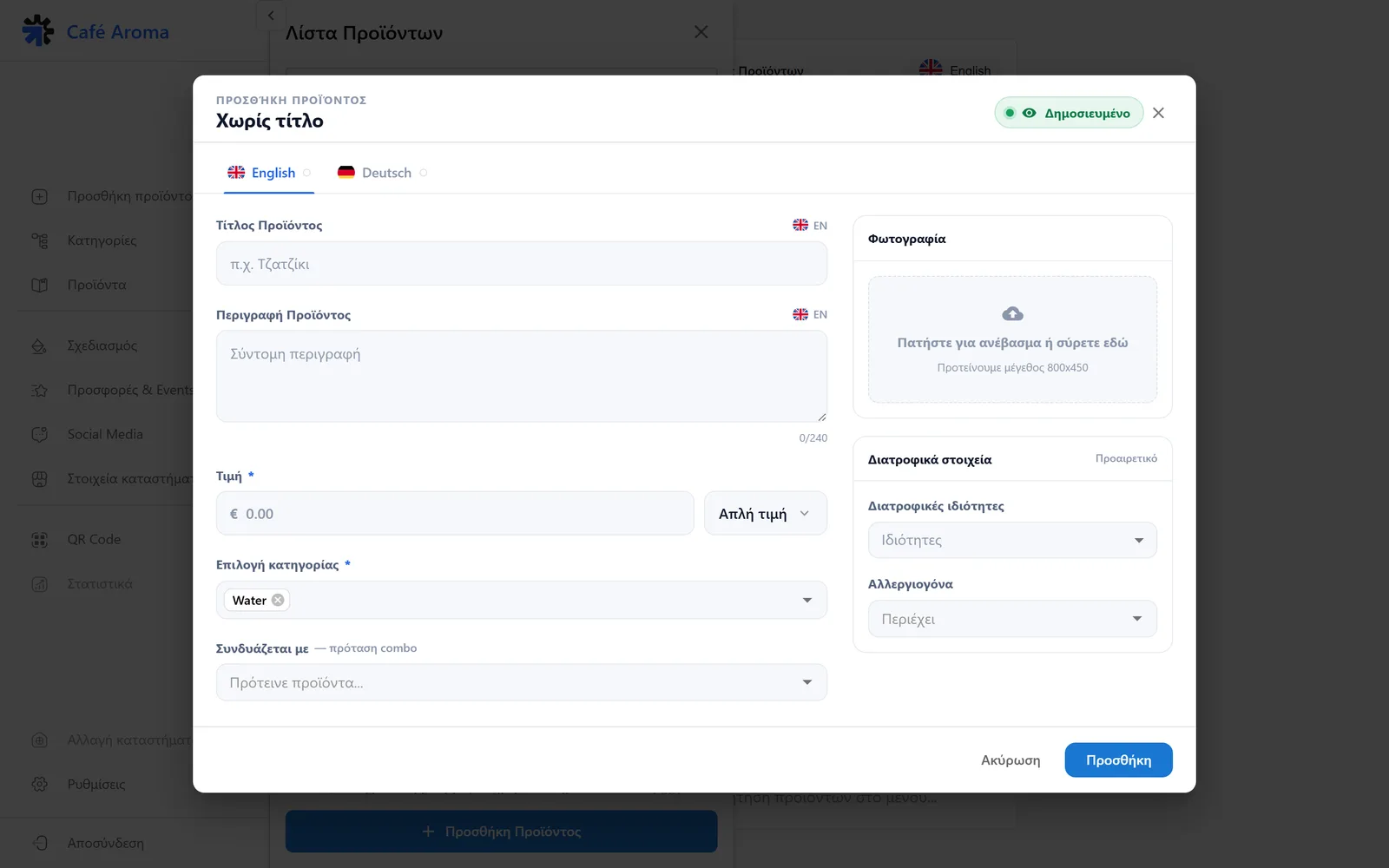
- Product title: the name, e.g. Freddo Espresso.
- Product description: a short, appetizing description.
- Price: the price in euros.
- Category selection: where the product belongs.
- Pairs with: a combo suggestion with other menu items.
- Photo: upload or drag an image. Recommended size 800×450.
- Dietary details: optional dietary attributes and allergens.
Click the add button to save. The product appears on the menu immediately.
Editing and availability
Editing opens the same form with the product details filled in.
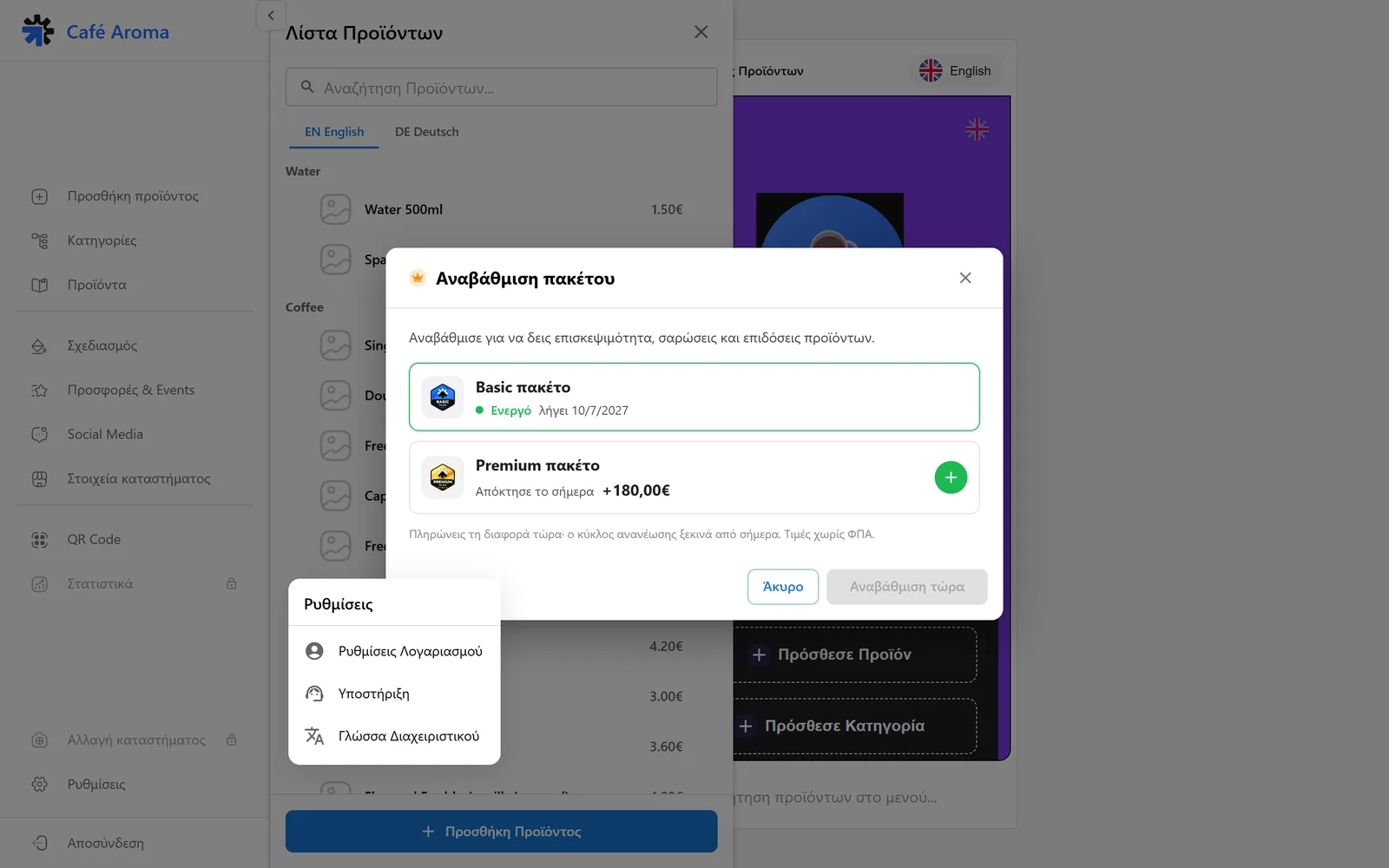
- Change the price, description or photo anytime.
- The Published indicator controls whether the product shows on the menu.
- Changes go live on the QR menu instantly, with no new QR.
Translations per language
The product form has a tab for every active language, e.g. English and Deutsch.
You write in Greek and the content is translated automatically. Correct anything by hand, per language.
Review the translations of your best sellers. Accuracy matters most there.
Need help?
If something does not work out, do not waste time. Our team replies fast to every question.