
The QR Code section
Open QR Code from the left menu. There you see the QR and the public link of your menu, in the form loudlink.io/app/XXXXXXX.
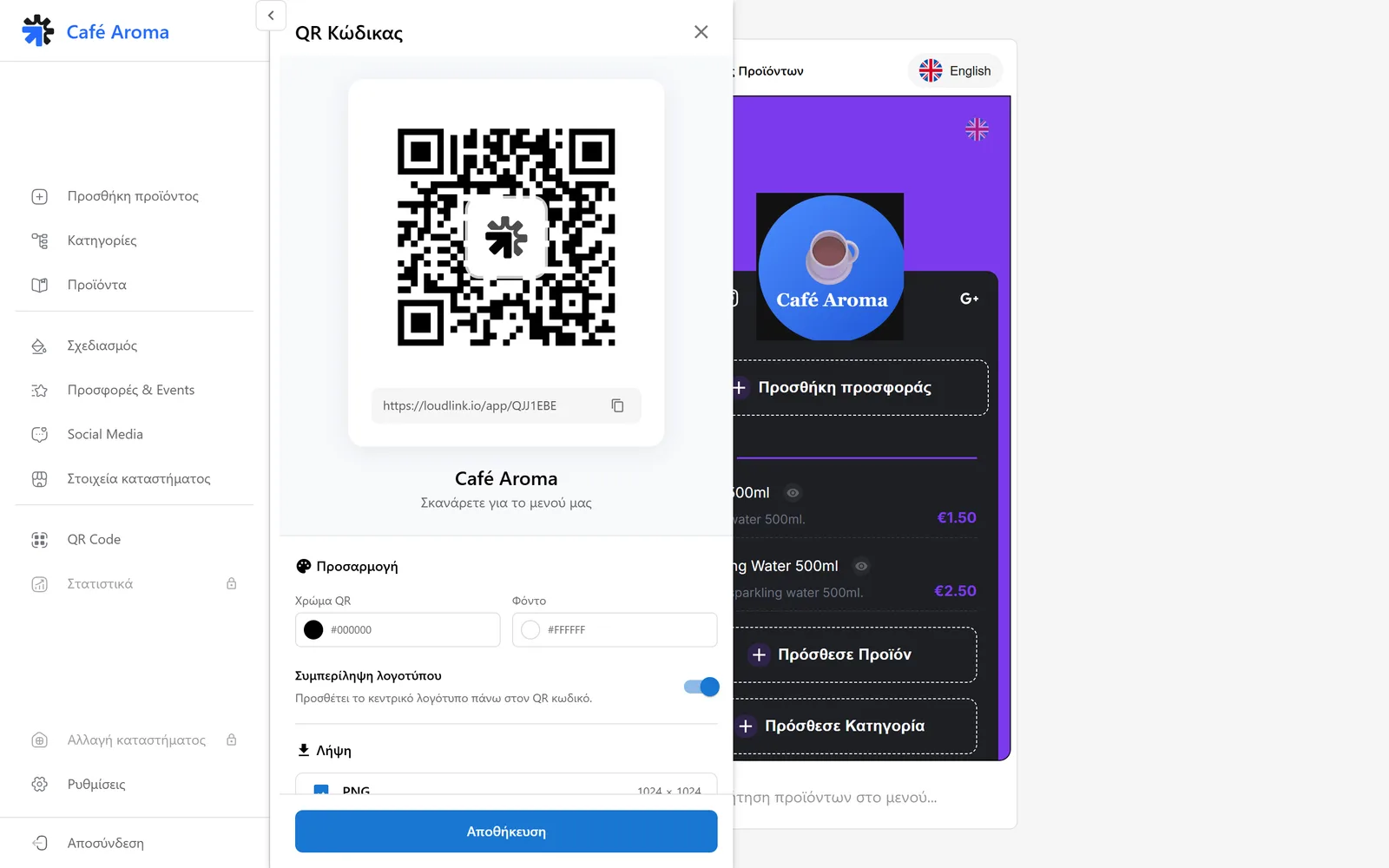
- In the customization area you change the QR color and the background.
- The logo option places your logo in the center of the QR.
- From the download area you get the QR as a high resolution 1024×1024 PNG, ready for print.
- Click save to keep your changes.
Tip
The QR is live: it always leads to the current version of the menu. No reprint is needed when you change prices or products.
The public link
You can use the same link as the QR anywhere:
- In your Instagram and Facebook bio.
- On your Google Business Profile.
- In WhatsApp, Viber or SMS.
- On your store website.
How your customer sees it
The customer scans the QR and the menu opens in the phone browser, with no app to install.
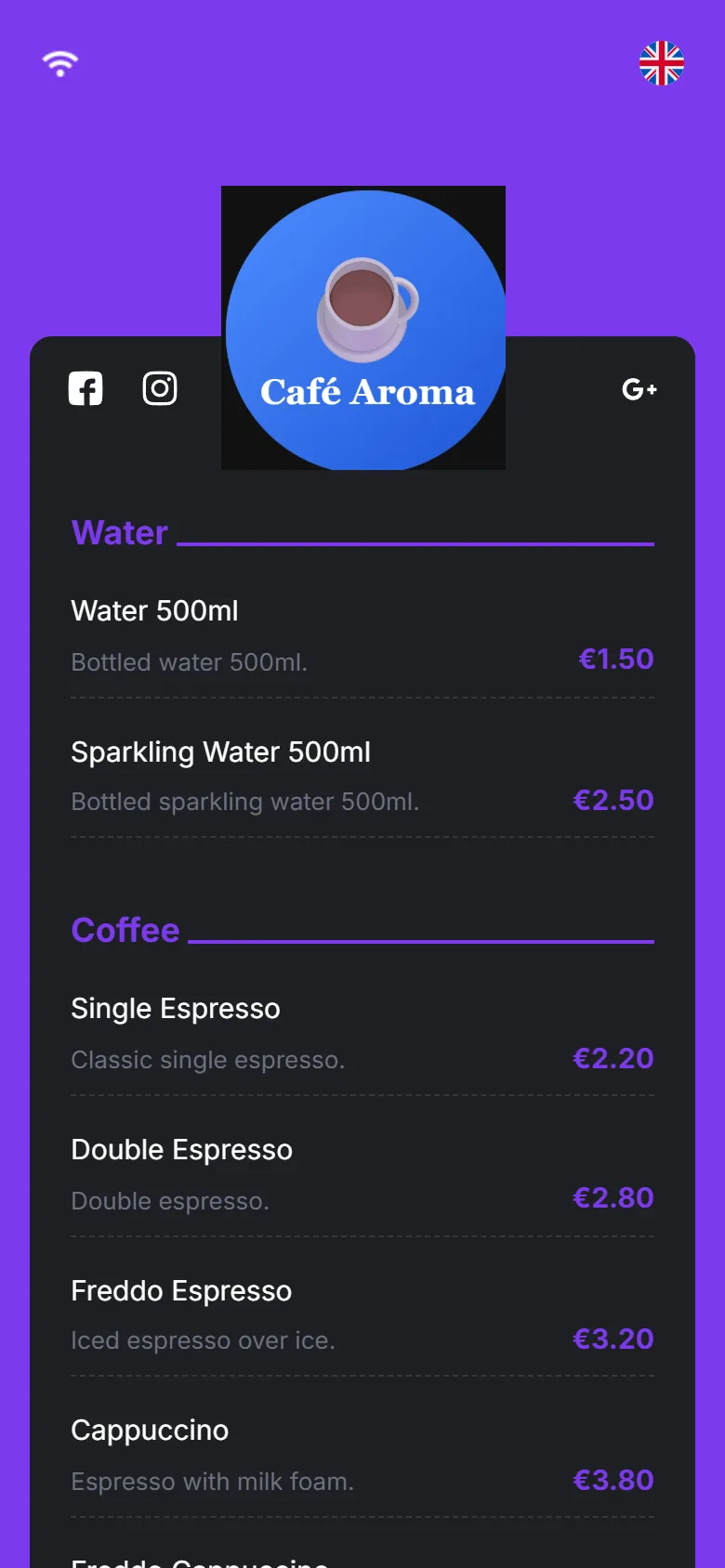
- At the top they see your logo and your socials.
- The Wi-Fi icon shows the connection details you set.
- The flag at the top right switches the menu language.
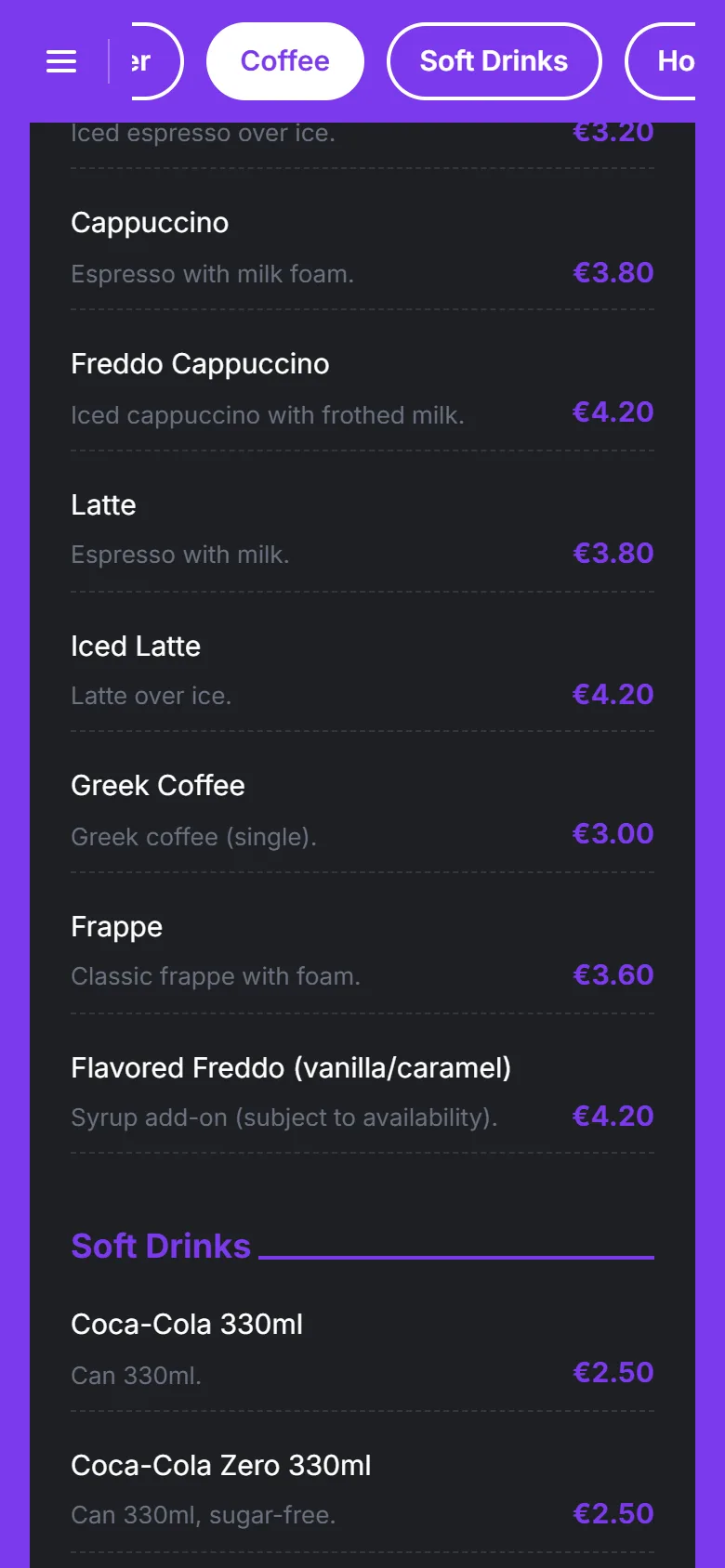
Categories and products on mobile
Categories and products appear in the order you set, with names, descriptions and prices.
Tip
Scan your own QR before printing it. You will see exactly what your customer sees.
Need help?
If something does not work out, do not waste time. Our team replies fast to every question.