
Design
Everything you set during setup can be changed here anytime: Classic, Modern or Bold layout, palettes or your own colors, background image and font.
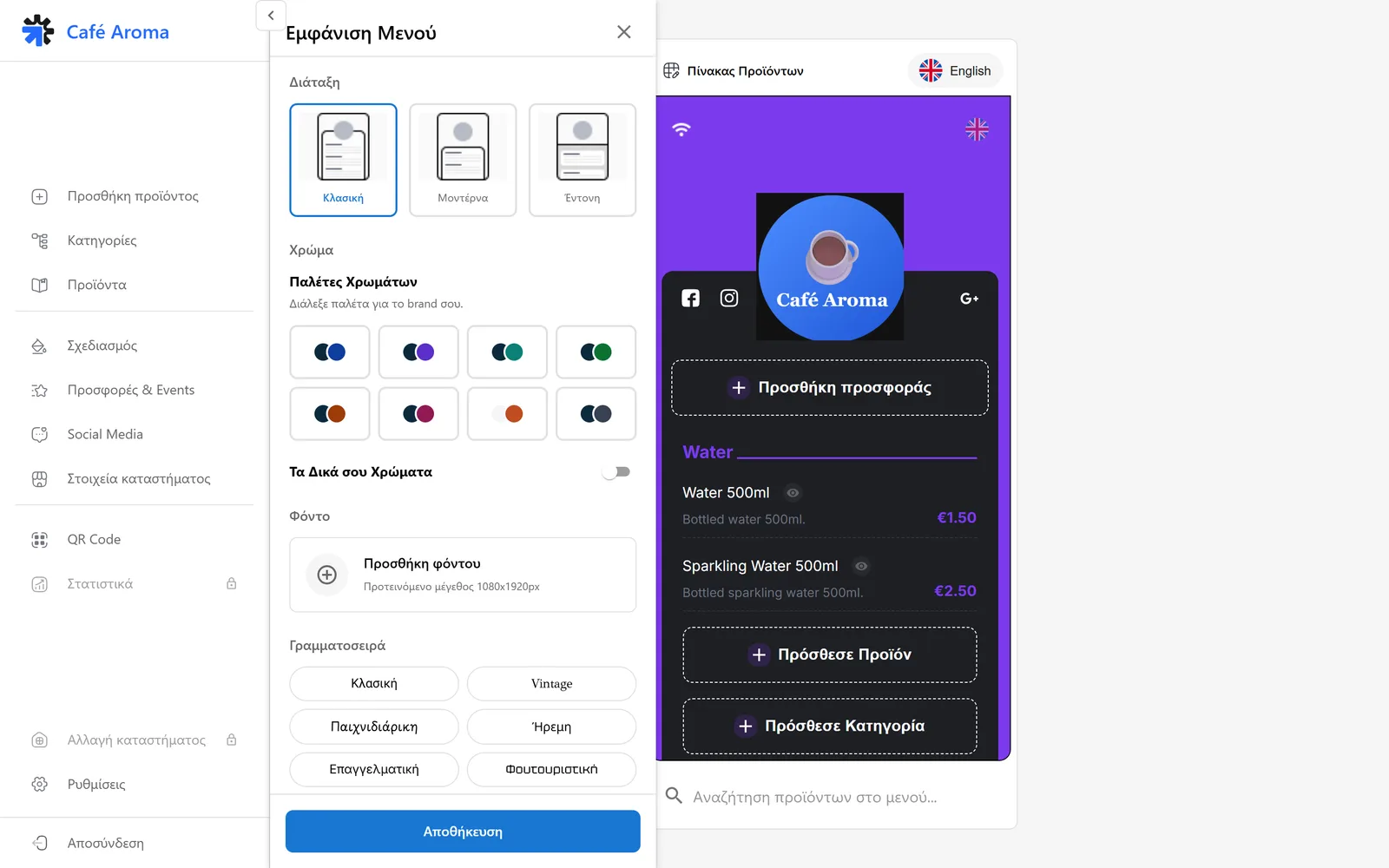
Changes show up instantly in the menu preview, before you save them.
Promos & Events
Here you add promotional content inside the menu.
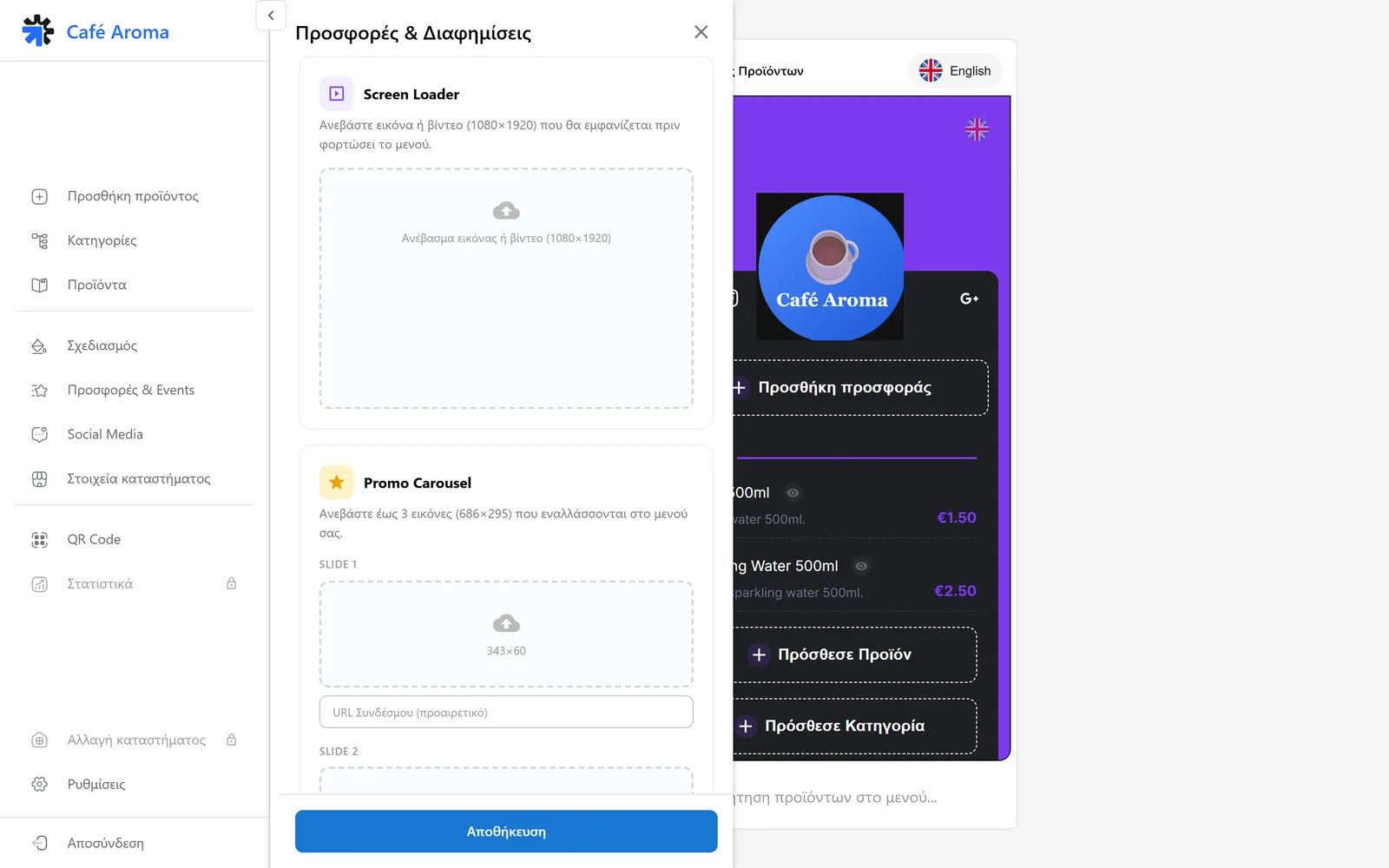
- Screen Loader: a 1080×1920 image or video shown while the menu loads. Ideal for branding or an offer.
- Promo Carousel: up to 3 images inside the menu, with an optional link URL to a page or social profile.
Click save to publish your changes.
Social Media
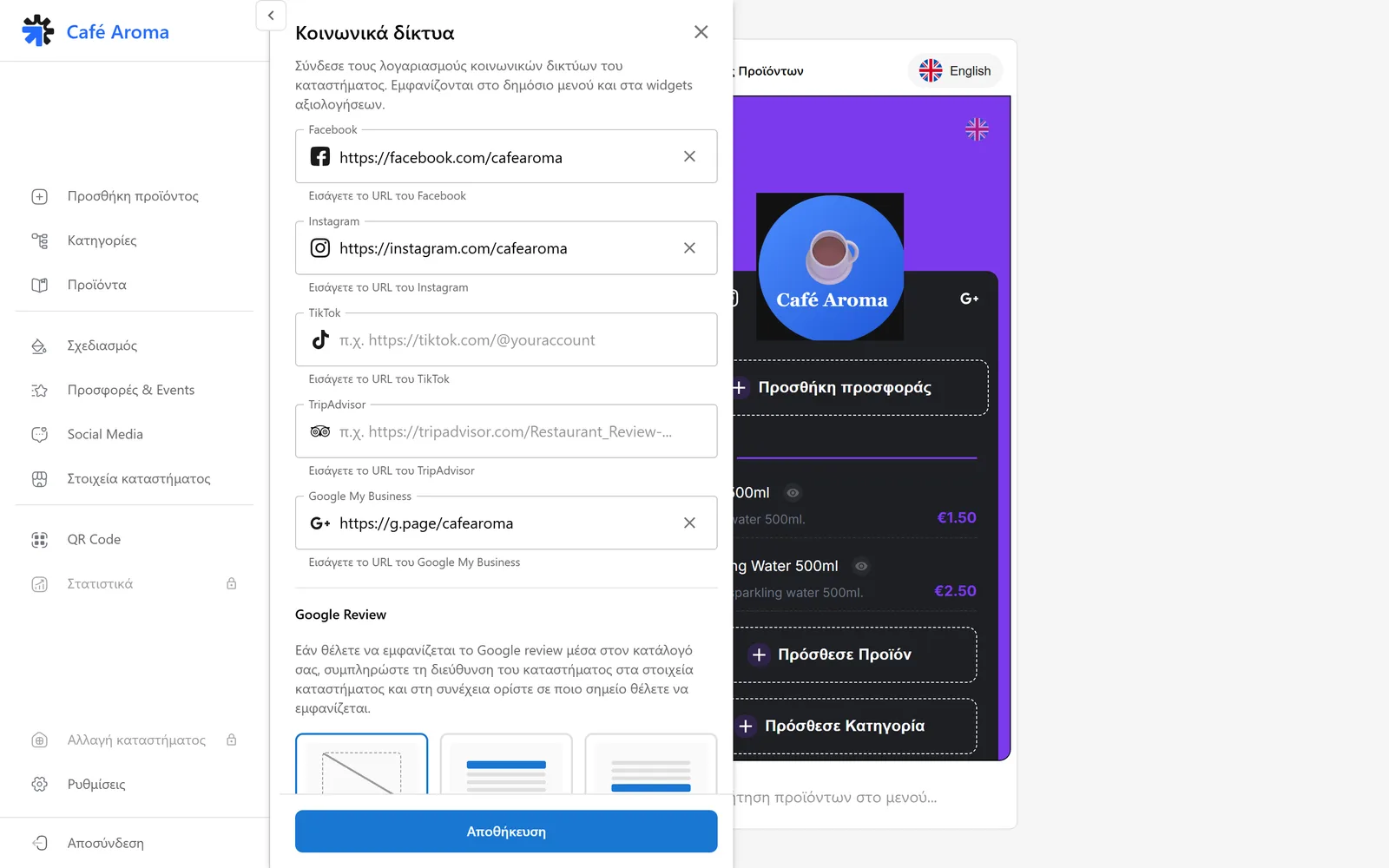
Manage your links to Facebook, Instagram, TikTok, TripAdvisor and Google Business. The icons appear on the public menu.
Store details
The information that helps customers in your store:
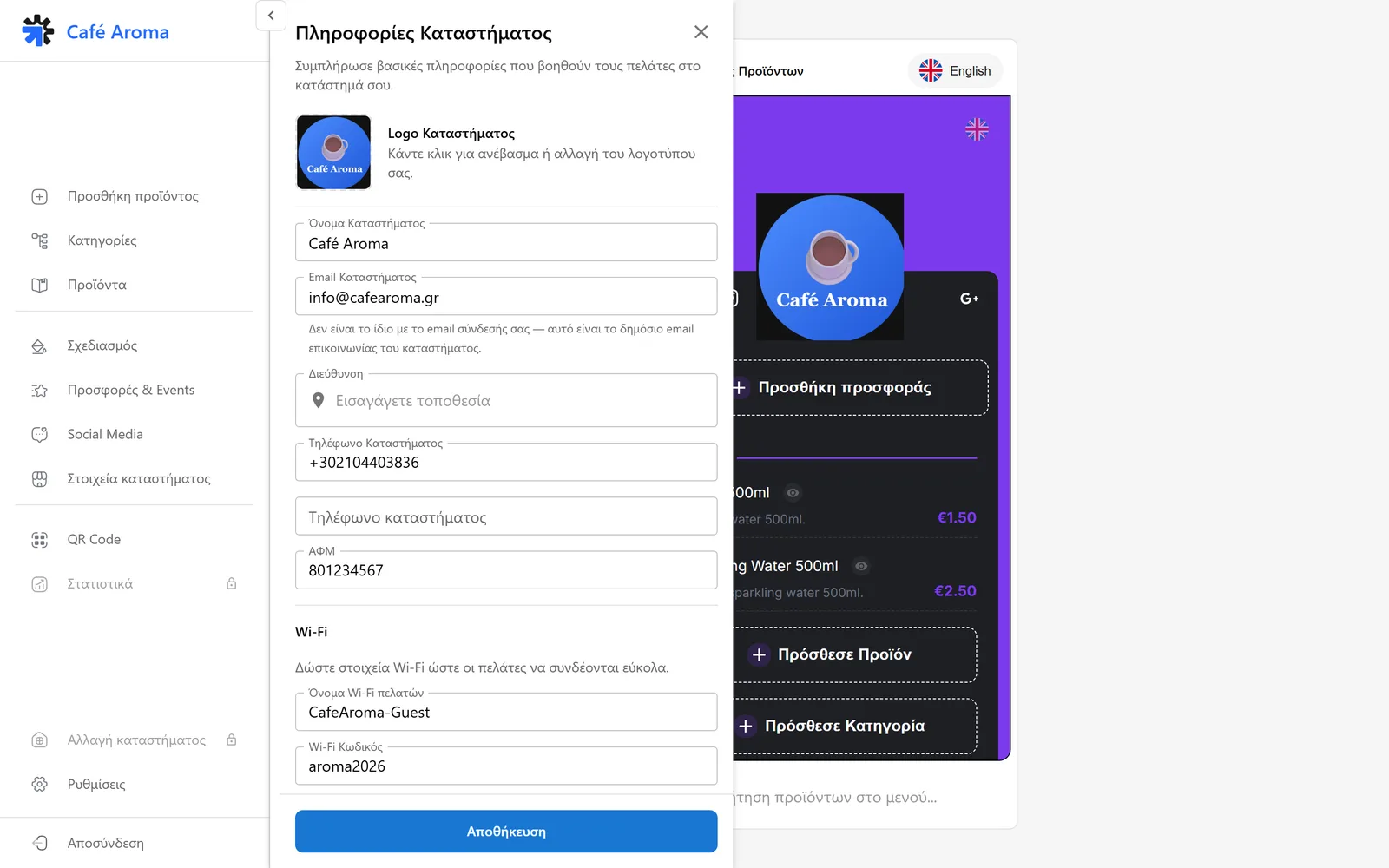
- Store logo: click to upload or change it.
- Store name and store email. The email here is the public contact email, not your login email.
- Address and store phone.
- VAT number for your business details.
- Wi-Fi: customer Wi-Fi name and password, so customers connect easily.
Do not forget to save at the end.
Statistics
See how your menu performs: views and customer activity on the QR menu.
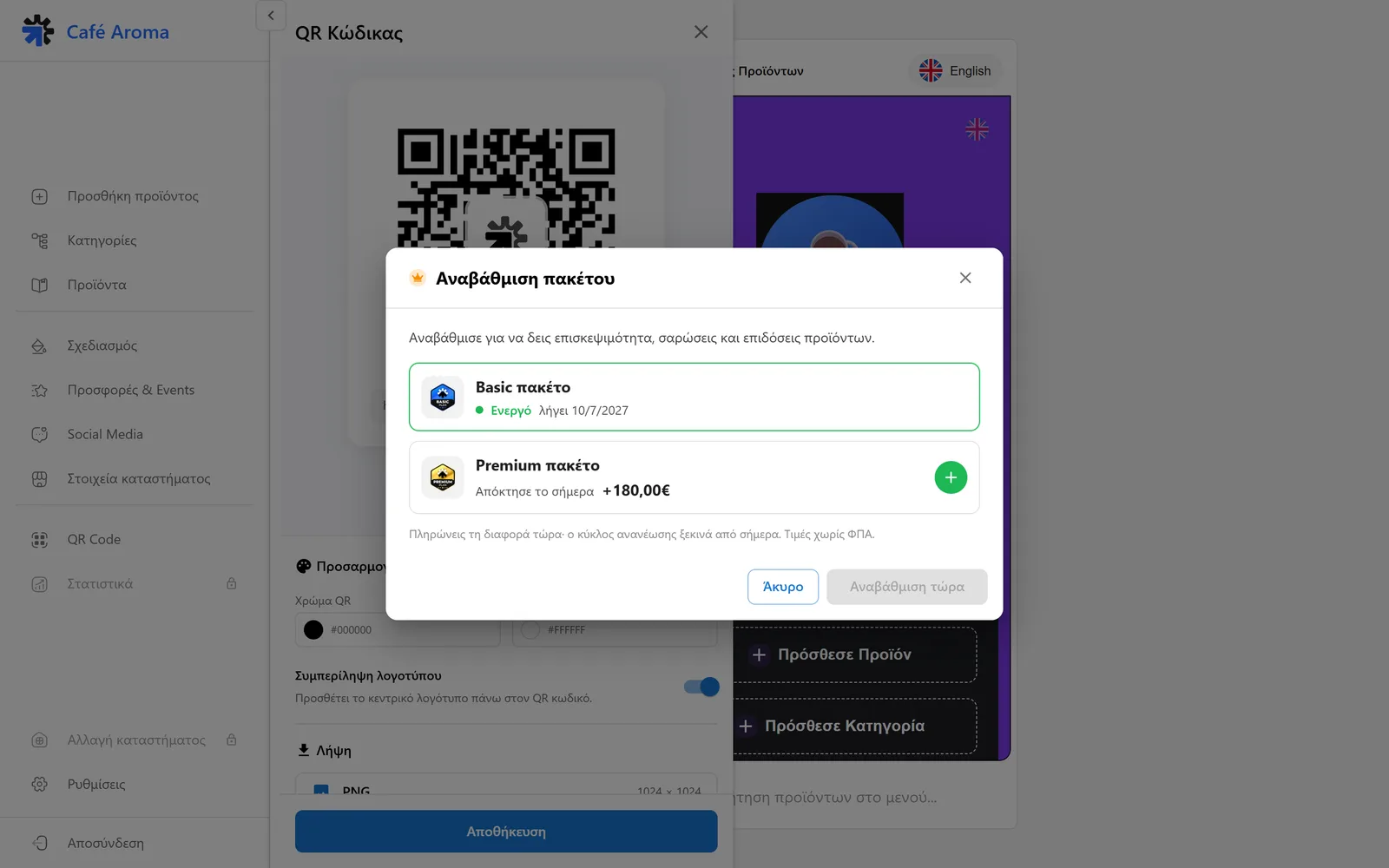
Statistics and store switching unlock depending on your plan.
Settings
From Settings you manage everything about your account and your workspace.
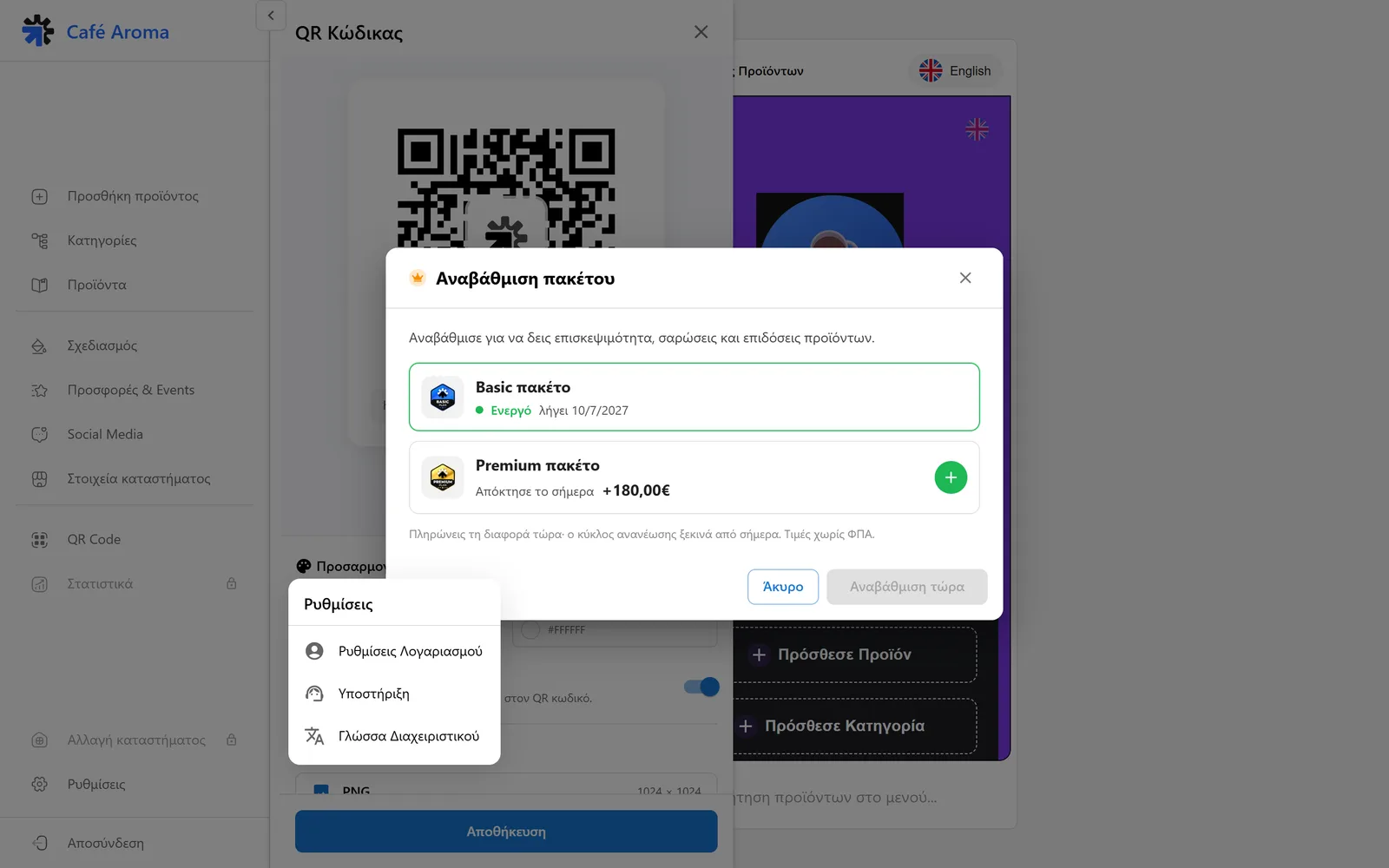
- Account settings: your details and your password.
- Support: direct contact with the Loudlink team.
- Admin panel language: changes the interface language, not the menu.
- From here you can also replay the dashboard tour.
Need help?
If something does not work out, do not waste time. Our team replies fast to every question.